
Connecting PhpStorm To Custom ACP OpenClaw Agents
This article is a technical notebook as I rework my development process to use local AI models running on the DGX Spark AI server on my LAN. The goal is to try to use local , and arguably less capable, AI models to perform rudimentary tasks. These are my notes on various attempts to get PhpStorm (my current JetBrains base code management and editing interface : IDE) to communicate with local models running on the Spark. Prior attempts worked but may not be as efficient as possible. I am about to find out.
Sidebar – Why Even Use The Spark?
As I delve deeper into the underpinning of how AI is working I have learned how inefficient AI interactions are. I hope that the fact that every AI interaction burns FAR TOO MANY tokens is simply a side effect of “growing and capturing market share before our competitors”. While that is awful, it is better than thinking “more tokens, more money” as the driving force behind the excessive token burn rates.
In either case, I feel it is a solid generalization to say that for each token used to process and AI request there are two primary resources being consumed by the AI models – electricity and power. The amount of natural resources that AI is consuming is absurd. Without delving deep into the topic, I feel that anyone using AI on a daily basis needs to be more responsible with their AI use and do whatever they can to reduce token consumption. For me that means leveraging my local Spark server that runs on 200 Watts of maximum power consumption and needs zero water for cooling.
Full disclosure: For most of this work I am pulling from online documentation I am already aware of. For methods I am not familiar with I am using the OpenClaw WebUI running on the Spark to communicate with a locally hosted nemotron-cascade-2 model managed by Ollama to provide insight and instruction.
Spark Server Starting Environment
I’ve been using the Spark server for nearly 9 months now. It already has some key pieces that work well for general AI interaction.
Ollama – a model server that handles the role of replacing a cloud-based LLM (like ChatGPT 5.5). Ollama provide a simple way to download a variety of open-source models and have them run locally. In my case on the Spark server. The Spark can handle some fairly hefty models with 128GB of unified memory and some decent NVIDIA processors on board. Many of the open source models are a year or two old and fully capable of advanced tasks. If you are not researching current events, these models are very well trained and can do far more than you may think.
OpenClaw – an AI agent interface that provides a communication gateway for the models. OpenClaw provides communication channels, in my case via a web-browser based UI, a terminal based UI, and a Slack connector for the user input side of things. The gateway routes requests to various models which include both the local Ollama-hosted models (nemotron and qwen models mostly) as well as cloud-based models primarily OpenAI ChatGPT variants. |
Another key feature of OpenClaw is the ability to configure multiple agents. Each agent can be designed to talk to specific Slack channels or ACP connections. They can also be configured to talk to a preferred model. My simple code fixer agent can talk to the Ollama Qwen model while the system architect agent is talking to ChatGPT 5.5.
Docker, OpenWebUI – random tools and apps supporting various research work on the Spark. Docker, in particular, is useful for creating contained sandboxes for doing potentially destructive AI work. Open WebUI a web browser interface for talking to Ollama models directly without the agent overhead of OpenClaw.
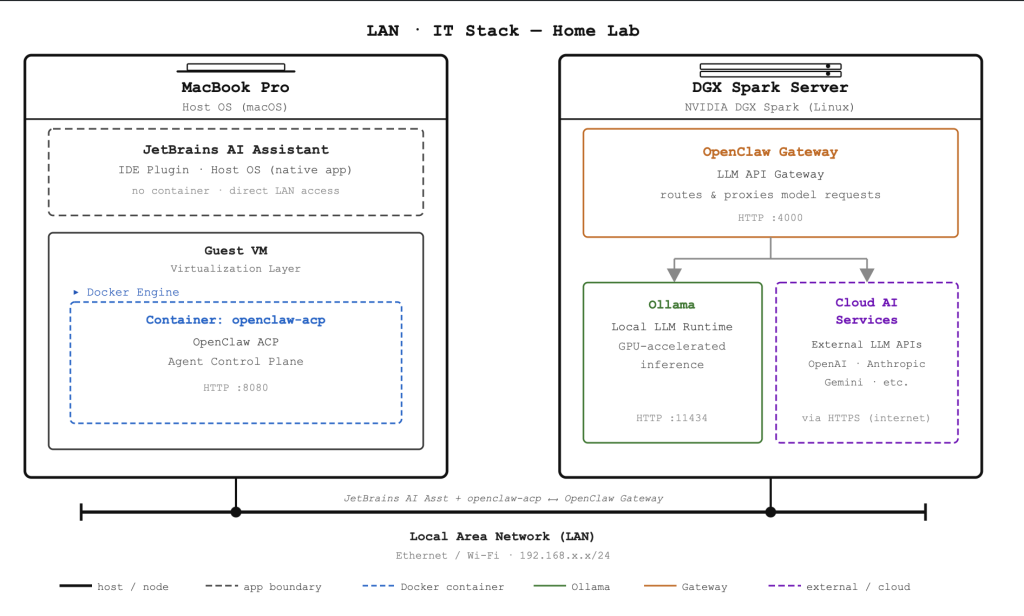
Talking To OpenClaw Via OpenAI Protocols
Do not confuse this with talk to OpenAI, the company, and their ChatGPT servers. The OpenAI protocol is similar to ACP and provides a basic communication protocol for clients (PhpStorm in this case) and AI servers (OpenClaw on the Spark). OpenClaw “talks OpenAI protocol” out of the box, and the gateway easily handles communications in this mode.
Setup for OpenClaw OpenAI Communication
After a few false starts thanks to the Ollama based nemotron-cascade-2 , ChatGPT 5.5, and even Google Gemini via Google search , the connection to the OpenClaw server is fairly simple.
What you do NOT need despite the “helpful hints from AI”:
- DO NOT install the acpx plugin for OpenClaw on the Spark (you CAN but it is not necessary)
- DO NOT download and install the openclaw-ACP-bridge from an outdated 1.2.0 OpenClaw install on the Spark
- DO NOT install openclaw with ACP on the MacBook Pro
What does work:
- Use a SSH tunnel to connect the OpenAI Compatible default port 11434
- Can use any open port I use 28789 and avoid the OpenClaw 18789 default as I have other services like the WebUI using that
- In a terminal window create the SSH tunnel with username set to your user on the Spark and hostname the spark address on your LAN.
ssh -N -L 28789:127.0.0.1:18789 <username>@<hostname>
My use case: ssh -N -L 28789:127.0.0.1:18789 lcleveland@digit-001.local
- Configure AI Assistant in PhpStorm for a third-party API provider
- PhpStorm Settings | Tools | AI Assistant | Providers & API Keys
- Third party AI providers
- Provider: OpenAI-compatible
- URL: http://localhost:28789/v1 (this is your SSH tunnel and only works while that SSH command is active)
- API Key: the gateway token on your spark , use the openclaw UI or command line to search the config for the token
When the tunnel is open and the connection is configured properly, the Core Features, Instant Helpers, and Completion Model will provide a drop down showing all of the OpenClaw agents you have configured.
Limitations of OpenClaw OpenAI Communication
One of the issues with this mode of communication is that this protocol is limited in the JetBrains IDE universe to only work in Chat mode. That means direct file access and tool execution will be limited. There are also various communication issues with some Java libraries missing.
This is not the best method for connecting to PhpStorm. Time to re-invoke the ACP connections.
PhpStorm OpenClaw ACP Communication
With the limitations of the prior attempt, installing acpx via node is next on the list. I stumbled across the ACPX option while investigating openClaw and the differences between OpenClaw ACP (the server side of OpenClaw ACP connections).
Turns out acpx is simply a wrapper that works through the OpenClaw ACP utility.
Turns out the prior methodology of using a local OpenClaw instance running the ACP client as a routing agent it likely the best option. However, on this new M5 MacBook Pro I would prefer to keep all OpenClaw systems isolated. To do this I want to setup a Docker container running the OpenClaw instance. That keeps OpenClaw from polluting my primary login workspace on the laptop.
Running An OpenClaw ACP Bridge In Docker
This involves downloading and installing OpenClaw for Docker. This is not a typical installation as most people seem to believe it is safe to drop an open source AI connected agent into their main user account on their laptop. Sorry, but I am not risking that. Sure there are security controls, but that just seems like a REALLY bad idea. I’ve read enough accounts of AI Agents going rogue in these situations and deleting all email, or worse – deleting an entire hard drive. No thank you.
To run OpenClaw in Docker the suggest method is to clone the OpenClaw repository. I put this in a openclaw subdirectory for my project and ensure that is included in the .gitignore for the main openclaw-in-docker project directory.
cd ./openclaw-in-docker
git clone https://github.com/openclaw/openclaw.git
.gitignore contents
secrets
openclaw
local.env

### JetBrains template
# Covers JetBrains IDEs: IntelliJ, RubyMine, PhpStorm, AppCode, PyCharm, CLion, Android Studio, WebStorm and Rider
# Reference: https://intellij-support.jetbrains.com/hc/en-us/articles/206544839

<JetBrains gitignore template here>
The standard routine is to then build the Docker image locally. I’m opting to use a pre-built image instead as I’m not planning on making direct updates the openclaw source (yet). Instead I will used Docker Compose and let it rely heavily on the ./openclaw/docker-compose.yml to drive the operation.
The normal setup for OpenClaw is to have it run as a gateway. For this project I only want it to serve as an ACP bridge. As such, I skipped the normal gateway setup. That typically configured OpenClaw to run as a gateway that talks to various user input surface such as the web interface, Slack, Telegram, etc. and routes to a cloud service such as Anthropic using an API key. We don’t need all that, so I skipped the normal configuration routine:
cd ./openclaw ; ./scripts/docker/setup.sh;
Instead I only want to run the OpenClaw ACP command and have it route any ACP communications to the Spark server running on the LAN. The Spark server is already running a full OpenClaw Gateway that is talking to various AI cloud services as well as local Ollama models. As such I need something different. I also learned that “out of the box” with the Docker OpenClaw stuff assumes you are running everything local as a guest server on the host and NOT trying to reach services running elsewhere on the LAN.
As such, I need to modify some of the Docker Compose assets as well as the runtime setup. To get started I created a local shell script to execute the Docker container startup. It ensures consistent execution and will facilitate the PhpStorm custom ACP servers configuration later. Below are the primary pieces for this configuration.
The openclaw_in_docker.sh shells script to run things. It does some key things such as:
- Define which OpenClaw Docker image to use to run the container.
- Loads the default docker-compose.yml from the original OpenClaw source.
- Sends along the OpenClaw Gateway token from the Spark instance to approve connections.
- Names the container we are running as “openclaw.acp”
- Ensures only a single “openclaw.acp” instance is running
- Starts openclaw in ACP mode that connects to the Spark OpenClaw Gateway (wss://$SPARK_TS_HOST)
- Allows for additional ACP parameters to be sent, we send –session agent:sprocket:main to tell our Spark gateway which agent we want to talk to
- Adds the –verbose flag so we can track I/O in the Docker dashboard log view
#!/usr/bin/env bash
set -euo pipefail

SCRIPT_DIR="$(cd "$(dirname "${BASH_SOURCE[0]}")" && pwd)"

if [ -f "$SCRIPT_DIR/local.env" ]; then
  # set -a (allexport) causes variables defined to be exported
  set -a
  source "$SCRIPT_DIR/local.env"
  set +a
fi

export OPENCLAW_IMAGE

# Assumes git clone https://github.com/openclaw/openclaw.git created a sibling openclaw directory to this script
cd "$SCRIPT_DIR/openclaw"

# Enforce a single instance by removing any existing container with the same name
docker rm -f "$OPENCLAW_ACP_CONTAINER_NAME" > /dev/null 2>&1 || true

echo "Loading OpenClaw image $OPENCLAW_IMAGE into Docker container $OPENCLAW_ACP_CONTAINER_NAME" >&2

exec docker compose \
  -f ./docker-compose.yml \
  -f ../Docker/Composers/openclaw_cli_override.yml \
  run --name "$OPENCLAW_ACP_CONTAINER_NAME" --rm --no-deps \
  -T \
  -e OPENCLAW_GATEWAY_TOKEN="$SPARK_TOKEN" \
  openclaw-cli \
  acp --url "wss://$SPARK_TS_HOST" \
  --verbose \
  "$@"
The support .env file (local.env) file has some key variable definitions. This is ignored and not part of the git repo for this project.
# Which GitHub hosted Docker image do we want to use in our container
OPENCLAW_IMAGE="ghcr.io/openclaw/openclaw:2026.5.18-slim"

# Docker guest=>host directory mapping
# These are volumes that bind the guest files to host files
# This provides persistence across sessions and container instances
OPENCLAW_CONFIG_DIR="$SCRIPT_DIR/openclaw-acp-sprocket"
OPENCLAW_WORKSPACE_DIR="$SCRIPT_DIR/openclaw-acp-sprocket/workspace"
OPENCLAW_ACP_CONTAINER_NAME="openclaw.acp"

# The Spark server stuff
# The OpenClaw Gateway token for authentication, LAN address, VPN address
SPARK_TOKEN="0d<redacted>0"
SPARK_HOST="digit-001.local"
SPARK_TS_HOST="digit-001.tail<redacted>.ts.net"
The override for the Docker composer default. We need to turn off the default network mode for the openclaw-client service. We need to talk to the LAN, so let’s reset that. In ./Docker/Composers/openclaw_cli_overrid.yml we have the following “reset to standard network mode” setup:
services:
  openclaw-cli:
    network_mode: !reset null
Time for a test run. Here I run the script with no parameters from within the PhpStorm IDE. It opens a terminal session to execute the script (background). This automatically fires up an openclaw.acp container in Docker. If I ^C to break out of the session, the container closes automatically.
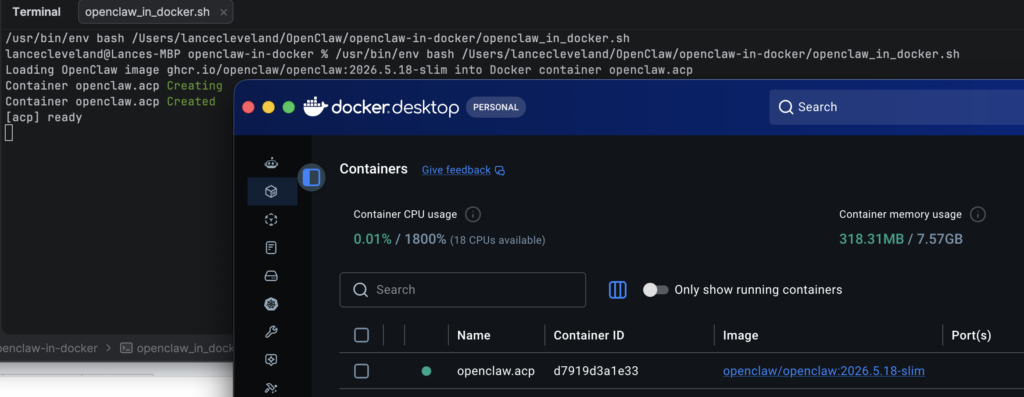
You’ll notice some things in the docker compose command. Most are configuration items, but an important element is the -T flag which helps Docker behaving when routing ACP requests over STDIO style interfaces. It impacts the TTY operations of the interaction.
The Tailscale Effect
You may also see the URL to the Spark server. In my configuration I use Tailscale, a VPN provider, to talk to the Spark when I am working remotely. Since I have Tailscale configured on the Spark server I cannot run the OpenClaw Gateway in anything other than loopback mode. That complicates things. To use Tailscale and have remote access I cannot set the OpenClaw Gateway to use LAN mode, which keeps the OpenClaw service “hidden” from the LAN. Rather than do network gymnastics at this point in the game, I opted for the simple route: have this ACP session use the Tailscale VPN for the connection despite both systems on the LAN. The advantage is that this will work even when I am working remotely (downtown office , Switchyards, a random hotel somewhere out there). As such I opted to incur the overhead and reliance on a third party cloud service even when working from home.
This choice means some different options in my connection profile. OpenClaw ACP over Tailscale means I can use the stdio style connection URL, here using the wss:// prefix. That means our communication will be sent over and SSL layer. You’ll also notice my hostname is the host ID on the Tailscale network (digit-001.tail*.ts.net) which means I need to be using the Tailscale VPN on the MacBook Pro host whenever I use this service. Lastly, the standard 18789 port is missing. That is because the OpenGlaw Gateway on this Spark server is routing via the 443 secure web communication port. If your gateway is listening on a different port you may ned to add the :<port> to the URL provided.
Connecting PhpStorm AI Assistant to OpenClaw ACP
At this point my litmus test worked, the script ran and gave me an ACP input prompt. Time to do a real-world JetBrains AI Assistant test.
JetBrains and Zedi created an ACP protocol that allows AI clients (JetBrains AI Assistant among them) to connect to any AI service that supports ACP. OpenClaw, as you may have guessed via the included openclaw acp command, supports the protocol.
To get this connected I had to add a custom ACP agent in PhpStorm. The configuration uses a standard JSON format. In my case I want it to run my Docker interface script. I also went to ensure I can choose the Sprocket agent directly , which is the agent that is trained on Store Locator Plus, versus the generic “main” agent on the OpenClaw Gateway. Here is my acp.json file for the connection.
{"default_mcp_settings":{},
  "agent_servers":{
    "Docker Script ACP : Sprocket": {
      "type": "custom",
      "command": "/Users/lancecleveland/OpenClaw/openclaw-in-docker/openclaw_in_docker.sh",
      "args": [
        "--session",
        "agent:sprocket:phpstorm"
      ],
      "env": {}
    }
  }
}
Testing The Connection
One thing I learned early on, if you change the helper script or the acp.json you need to start a new chat session in the AI Assistant. This ensures things are reloaded and restarted with a new session ID. Thankfully the configuration here shares an ACP log directory and the OpenClaw Gateway on the backend retains context as long as you keep the same session key. In the ACP.json you’ll see that key in standard <role>:<role-id>:<session_key> format. The first part should almost always be “agent”, the second part is how I tell OpenClaw Gateway on the Spark which agent I want to talk to using the Agent ID (not the name). The last part is the session key. Here I want a long running shared context so I’ve coded it to use a special phpstorm session key. This will allow me to follow logs as well as monitor PhpStorm driven chats in real time using the openclaw tui on the spark server.
I started a new chat in AI Assistant after setting up the Custom ACP Agent and selected the Docker Script ACP: Sprocket agent. When I start my chat, I can see Docker spin up the ACP container. I can watch the ACP raw communication logs via the Docker Desktop log viewer on the container. This can be helpful for debugging communication issues. In this screen shot you can see the interaction, which is being answers via the OpenClaw Gateway on the Spark. In this case it is eventually routing to ChatGPT 5.4 in the cloud versus a local Ollama connection as my current development mode requires more complex work from the “Sprocket Agent”. I can easily change this to use the local qwen or deepseek-coder models running on the Spark. I can also have Sprocket spawn subagents with lighter weight local models for “easy lifts” as needed by using well-crafted prompts to invoke the subagent and model I desire.
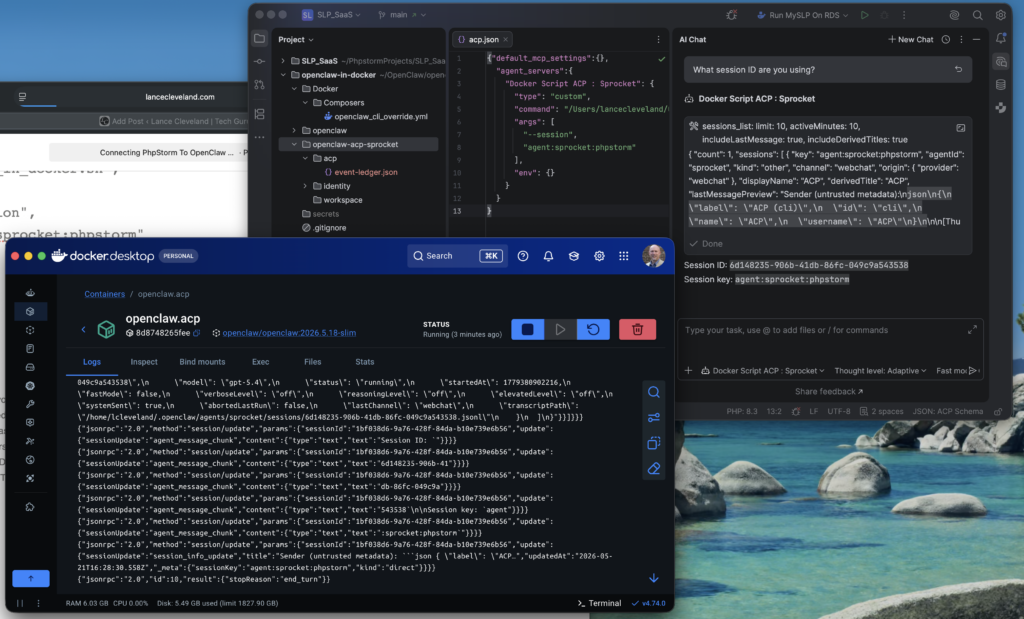
Custom ACP Agent Gotchas
Some of the things I’ve learned watching the AI conversation logs, especially with ACP.
Thinking Mode
Not all models support all features, including something as basic as the “Thinking” or “Reasoning” level. Turns out , if you connect to OpenAI models on the cloud you CANNOT use the default “Adaptive” thinking mode with the model. Newer OpenAI ChatGPT models also do not support “low” thinking mode. This determines how much “thinking” the model does with “High or XHigh” consuming 2-3x as many tokens to give an answer. Thankfully setting the Thinking level to “Off” works with OpenAI. No idea if they default to low or medium level with that in places as they keep their end a black box, but that seems to work best across most models.
If you forget to change the thinking mode, this appears in the AI Assistant response:
Failed to initialize ACP process. Process terminated with exit code: 137. Process output:
Loading OpenClaw image ghcr.io/openclaw/openclaw:2026.5.18-slim into Docker container openclaw.acp

 Container openclaw.acp Creating

 Container openclaw.acp Created

[acp] ready

[acp] newSession: 1bf038d6-9a76-428f-84da-b10e739e6b56 -> agent:sprocket:phpstorm

[acp] setSessionConfigOption error: GatewayClientRequestError: thinkingLevel "adaptive" is not supported for openai-codex/gpt-5.4 (use off|minimal|low|medium|high|xhigh)
The fix? Start a new session and make sure to set the Thinking Level on the AI Assistant UI to “off”.
Also – this can cause the ACP session to crash leaving behind a lock file (see below) forcing manual removal of the lock.
OpenClaw ACP Ledger Locking
Sometimes the OpenClaw ACP modules get stuck. Turns out there is an issue with the ACP module keeping track of things in the acp/event-ledger.json log. They use a rudimentary locking process for this file, creating a temporary event-ledger.json.lock file to indicate another process is working with the log. Sadly the locking logic is not very robust and gets stuck on a pid based lock contention check. The code is missing the fallback to the timestamp lock identifier. As such, if something goes wrong the event-ledger.json.lock file gets left in place. This blocks all future responses until the lock goes away. Since my setup maps the Docker container workspace and acp directory to the local laptop host directory ./openclaw-acp-sprocket directory within the project folder, I can easily monitor this with PhpStorm. If comms stop and the Docker log is not showing the “Error: file lock timeout for /home/node/.openclaw/acp/event-ledger.json” error, I can delete the file on my laptop and the process continues.
Image by Michael Schwarzenberger from Pixabay