
Changing Jetbrains AI Assistant Codex Authentication
A super quick how-to article on changing the login credentials when using Jetbrains AI assistant. This is specific to the OpenAI Codex agent using the OAuth (login based) method. As with many AI tools out there this system is half-baked. Works great for rudimentary stuff, but try to do anything outside the vanilla everyday workflow and things fall apart quickly. Personally I feel all these AI companies are moving around too quickly as they try to race ahead of each other on feature lists. This is compromising the integrity and quality of almost every system out there that interfaces with AI. That is another story.
The “Single Codex Account” Issue
You used the Jetbrains AI Assistant and attach the Codex Agent so you can use your own OpenAI account inside the IDE to work on a software project. You logged into account “project-a@mycompany.ai” using the OAuth (login based) method when the AI assistant asked for account verification. Now you are working on a different project and want to connect to “project-b@anothercompany.ai” so you use up their tokens. Currently you cannot do this easily with Jetbrains AI Assistant.
There is a workaround.
The Codex Authentication Workaround
This one took a bit to figure out, so I am posting the notes here for future me to discover. The paths are MacOS specific and likely works on most Linux-based systems. There is likely a similar path on Windows.
In the IDE (Phpstorm in my case) go to the Tools | AI Assistant | Provider & API Keys, look under the Agent Authorization list and revoke the ChatGPT Authentication.
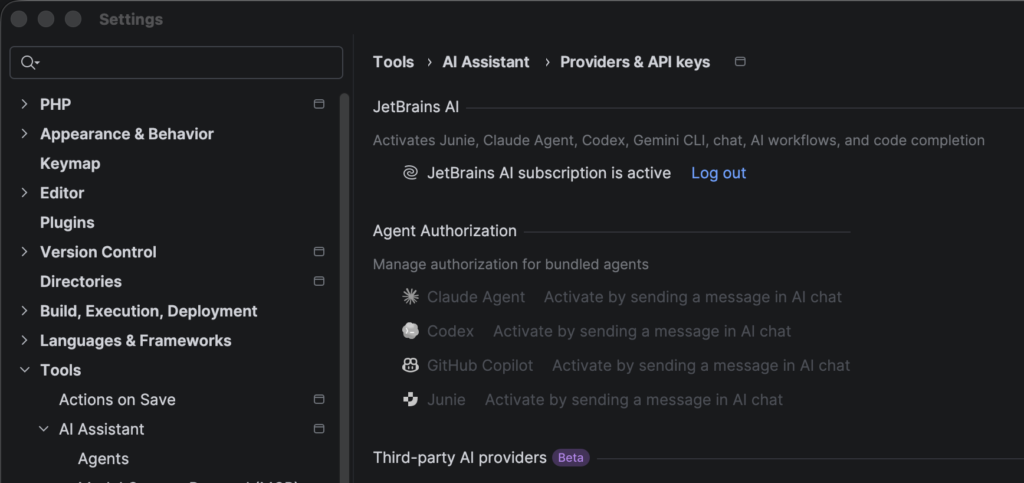
Remove the file ~/.codex/auth.json
Start a new AI Assistant chat.
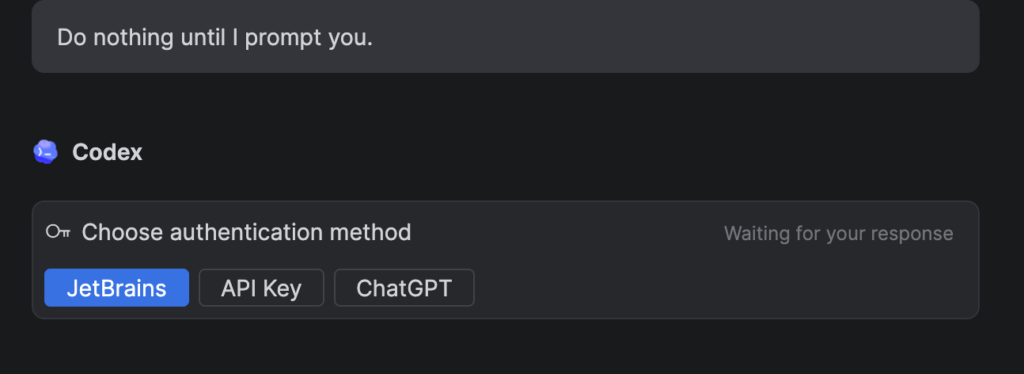
The Details
The first time you use AI Assistant chat with the Codex agent it will ask you if you want to use Jetbrains, and API key, or ChatGPT to authorize your Codex connection. ChatGPT will use Oauth (login base authentication) which works great against a Business level OpenAI account.
The problem is the first time you login, this is stored for all future sessions even if you revoke the authorization for Codex using the settings interface noted above.
While you will be asked which method to use the second time, you will NOT get the login interface if you choose ChatGPT. You are perpetually locked into the first account you used to authenticate your ChatGPT connection.
While this works great for most basic AI users, anyone that consults for multiple companies or has different OpenAI accounts for different client project to track expenses on a per-project basis, this is not a great option.
The above workaround will allow you to align your coding sessions with each projects expense tracking.